
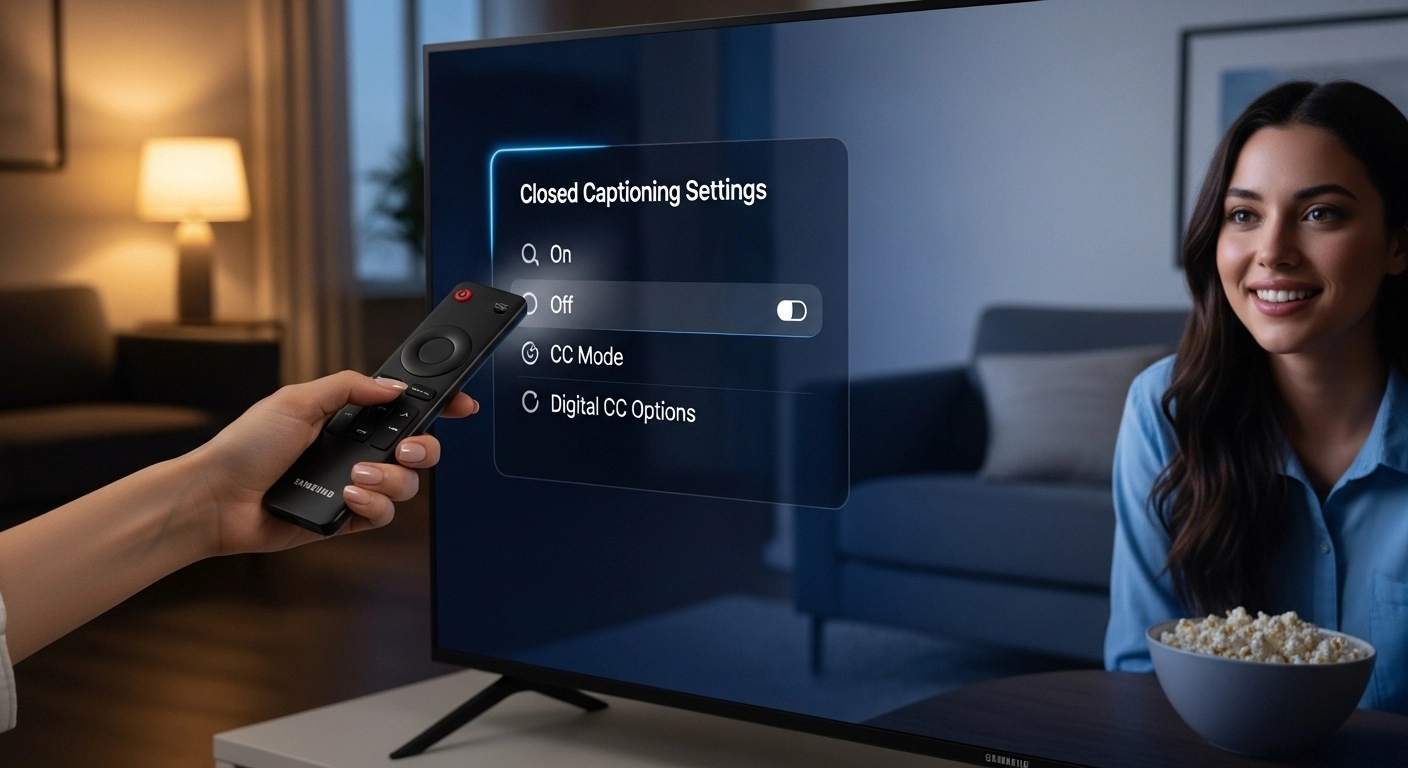
If you’ve ever missed a line in your favorite show because someone started talking in the room, you already understand why closed captions matter.
Whether you’re watching Netflix late at night, following fast-paced dialogue, or improving language comprehension, knowing how to enable closed caption on Samsung TV can instantly upgrade your viewing experience.
Samsung TVs make it easy but the steps vary depending on your model, content source, and remote type. This guide walks you through every scenario in a simple, practical way. No confusing tech jargon. Just clear steps.
Let’s get into it.
📺 How to Enable Closed Caption on Samsung TV Using the Settings Menu
• Press the Home button on your Samsung remote.
• Navigate to Settings (gear icon).
• Select General from the menu.
• Scroll down and choose Accessibility.
• Click on Caption Settings.
• Toggle Caption to “On.”
• Adjust caption size if the text feels too small.
• Change font style if readability matters to you.
• Customize background opacity for clearer contrast.
• Switch between digital captions and standard captions if available.
• Confirm changes before exiting the menu.
• Return to your content to check if captions appear.
• If not visible, restart your TV once.
• Ensure the channel or app supports captions.
• Save your preferred settings for future viewing.
🎬 How to Enable Closed Caption on Samsung TV for Streaming Apps (Netflix, Prime, YouTube)
• Open your preferred streaming app.
• Start playing any show or movie.
• Pause the video.
• Look for the Subtitles or CC icon (usually a speech bubble).
• Select your desired language.
• Confirm your selection.
• Resume playback.
• Adjust subtitle appearance in the app settings if needed.
• Note that app settings may override TV settings.
• If captions don’t appear, double-check the app profile settings.
• Some apps save caption preferences per user profile.
• Exit and relaunch the app if captions fail to load.
• Update the app if it’s outdated.
• Make sure your internet connection is stable.
• Test another show to confirm the feature works.
📡 How to Enable Closed Caption on Samsung TV for Cable or Satellite Channels
• Turn on your cable or satellite box.
• Use your cable remote to access settings.
• Navigate to Accessibility or Closed Caption options.
• Enable CC from the box’s own menu.
• Confirm changes before exiting.
• Switch back to live TV.
• Look for the “CC” indicator on screen.
• If captions don’t show, check both TV and box settings.
• Some cable providers use their own caption formatting.
• Restart your cable box if needed.
• Make sure the channel supports captions.
• Try switching channels briefly.
• Update your cable firmware if outdated.
• Contact your provider if captions remain unavailable.
• Test again after resetting equipment.
🧭 How to Enable Closed Caption on Samsung TV Using Smart Remote Shortcuts
• Press the Mute button three times quickly on some models.
• Access the Accessibility shortcut menu instantly.
• Select Caption from the pop-up options.
• Toggle it to “On.”
• Exit the menu to resume viewing.
• This shortcut works on many newer Samsung Smart TVs.
• If it doesn’t respond, use the standard settings method.
• Confirm your remote batteries are working.
• Try holding the Volume button for quick settings.
• Some models allow quick-access menus via voice command.
• Ensure your firmware is updated for shortcut compatibility.
• Reboot TV if shortcuts don’t activate.
• Check your user manual for model-specific commands.
• Keep the remote pointed directly at the TV sensor.
• Practice once so you remember next time.
🛠️ How to Enable Closed Caption on Samsung TV When Captions Won’t Turn On
• Double-check that captions are toggled on in Settings.
• Confirm the content actually supports subtitles.
• Restart your Samsung TV.
• Power-cycle by unplugging for 60 seconds.
• Update your TV’s software.
• Go to Settings → Support → Software Update.
• Reset Smart Hub if apps misbehave.
• Try switching between Standard and Digital captions.
• Ensure HDMI connections are secure.
• Check if the source device has its own CC control.
• Factory reset only as a last resort.
• Test captions on another app or channel.
• Make sure region settings are correct.
• Confirm language preferences match available captions.
• Contact Samsung support if problems persist.
🌍 How to Enable Closed Caption on Samsung TV in Different Languages
• Go to Settings → Accessibility → Caption Settings.
• Turn captions on first.
• Select Caption Mode if multiple languages appear.
• Choose your preferred language.
• Save changes.
• Open a streaming app to verify language display.
• Some apps allow language changes within playback settings.
• Note that not all programs offer multilingual captions.
• Switch shows if language isn’t available.
• Keep your TV language aligned with preference.
• Adjust text encoding if characters appear distorted.
• Update firmware for expanded language support.
• Use streaming app language profiles for consistency.
• Confirm region settings allow multilingual options.
• Test another program for verification.
🔄 How to Enable Closed Caption on Samsung TV After a Software Update
• Access Settings after update completion.
• Navigate again to Accessibility.
• Verify captions are still enabled.
• Updates sometimes reset preferences.
• Re-adjust text size if settings changed.
• Confirm streaming apps retained subtitle settings.
• Restart TV if captions lag or glitch.
• Check release notes for accessibility changes.
• Re-enable captions manually if disabled.
• Test multiple content sources.
• Ensure Wi-Fi is connected post-update.
• Update all installed apps.
• Check HDMI devices for caption sync.
• Save updated configuration.
• Monitor performance for 24 hours.
🎮 How to Enable Closed Caption on Samsung TV for Gaming Consoles
• Open console settings (PlayStation, Xbox, etc.).
• Navigate to Accessibility options.
• Enable Closed Captions within console system settings.
• Some games require in-game subtitle activation.
• Launch your game.
• Open game settings.
• Enable subtitles from audio settings.
• Save preferences.
• Restart the game.
• Confirm subtitles display during dialogue.
• Ensure HDMI audio output is configured correctly.
• Update console firmware if options missing.
• Check TV accessibility menu as backup.
• Test another game to verify system-wide settings.
• Adjust subtitle size within game menu.
🔊 How to Enable Closed Caption on Samsung TV Using Voice Commands
• Press the microphone button on Smart Remote.
• Say “Turn on closed captions.”
• Wait for confirmation prompt.
• Follow on-screen toggle instructions.
• Ensure voice assistant is activated in settings.
• Check internet connection for voice functionality.
• Repeat command if misheard.
• Speak clearly and directly toward remote.
• Try “Enable captions” as alternative phrase.
• Confirm caption icon appears on screen.
• Use manual settings if voice fails.
• Update voice assistant software if outdated.
• Reset Smart Hub if assistant glitches.
• Test with another command for accuracy.
• Save accessibility preferences.
🧩 How to Enable Closed Caption on Samsung TV for External HDMI Devices
• Turn on the connected device (Roku, Fire Stick, Blu-ray).
• Access that device’s settings menu.
• Navigate to Accessibility or Subtitles.
• Enable Closed Captions there.
• Return to content playback.
• Confirm captions display.
• Note that TV settings may not override device captions.
• Restart both TV and device if not working.
• Switch HDMI ports if signal conflict occurs.
• Update streaming stick software.
• Check subtitle language settings.
• Disable duplicate caption settings to avoid overlap.
• Ensure HDMI cable is firmly connected.
• Test captions on different streaming content.
• Save device-level preferences.
📘 How to Enable Closed Caption on Samsung TV for Older Models
• Use physical Menu button on older remotes.
• Navigate to Setup or System.
• Look for Caption or Subtitle options.
• Toggle CC to On.
• Choose Analog or Digital caption format.
• Adjust font size if available.
• Exit menu to confirm changes.
• Restart TV if captions don’t display.
• Confirm broadcast supports closed captions.
• Update firmware if possible.
• Refer to model manual for exact navigation.
• Use cable box settings if TV menu lacks options.
• Replace remote batteries if menu unresponsive.
• Avoid factory reset unless necessary.
• Contact Samsung support for legacy assistance.
🔐 How to Enable Closed Caption on Samsung TV for Accessibility Optimization
• Enable captions from Accessibility menu.
• Increase text size for improved readability.
• Choose high-contrast font color.
• Add background shading for clarity.
• Adjust text opacity based on lighting.
• Enable Audio Description if needed.
• Pair captions with lower volume settings.
• Use night mode to reduce glare.
• Save customized accessibility profile.
• Test captions in both dark and bright rooms.
• Revisit settings periodically.
• Ensure all family members understand toggle shortcut.
• Update firmware regularly.
• Combine captions with Bluetooth hearing devices if applicable.
• Keep remote accessible for quick changes.
Final Thoughts 🎯
Understanding how to enable closed caption on Samsung TV isn’t just about turning on text — it’s about making your viewing experience more comfortable, inclusive, and distraction-free.
Whether you’re binge-watching late at night, learning a new language, helping a family member with hearing challenges, or just tired of rewinding dialogue, captions make everything easier.
The good news? Once you enable them, your Samsung TV usually remembers your preference. And now that you know every possible method — from streaming apps to cable boxes to voice commands — you’re fully covered.
If captions ever stop working, just revisit the relevant section above. It’s usually a quick fix.
Enjoy clearer viewing. 📺✨

Insightful writer covering business, technology, and modern digital trends.