
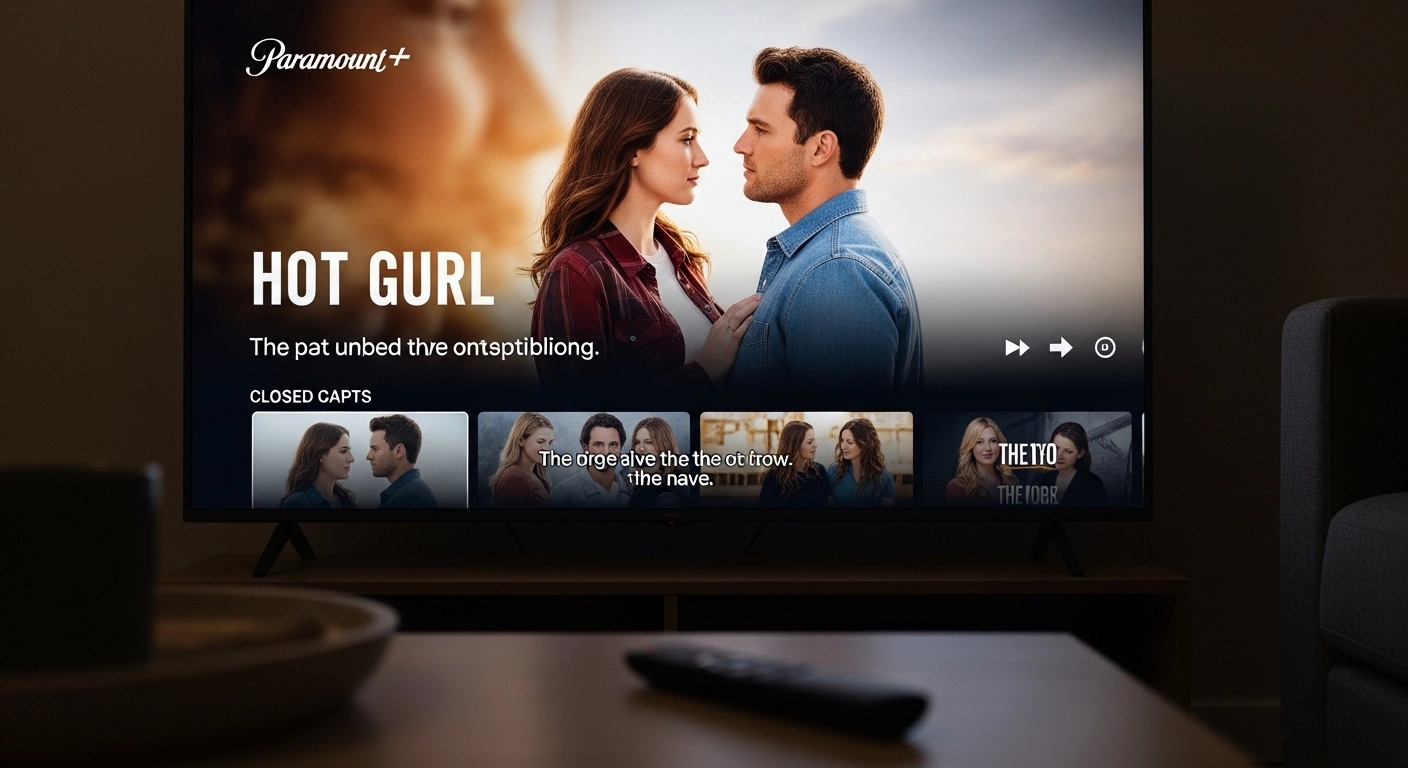
If you’re watching a show on Paramount Plus and can’t hear dialogue clearly — or simply prefer reading along — turning on captions can completely change your viewing experience.
Whether you’re watching late at night, dealing with background noise, improving language comprehension, or need accessibility support, closed captions and subtitles are essential features. The good news? Paramount Plus makes it relatively easy to enable captions — once you know where to look.
This guide walks you through how to get captions on Paramount Plus on every major device, including Smart TVs, Roku, Fire TV, Apple TV, iPhone, Android, and web browsers. It also covers troubleshooting tips in case captions aren’t working properly.
Let’s get started.
What Are Captions on Paramount Plus?
Before diving into the steps, it helps to understand what type of captions you’re enabling.
On Paramount Plus, you’ll typically see:
-
Closed Captions (CC): Include dialogue plus sound cues like [door slams], [music playing], etc.
-
Subtitles: Usually display only spoken dialogue (often used for foreign language content).
In most cases, when you turn on “CC” inside the Paramount Plus player, you’re enabling closed captions.
How to Get Captions on Paramount Plus (Quick Answer)
If you want the fastest method:
-
Start playing a show or movie.
-
Pause the video.
-
Look for the speech bubble icon or CC button.
-
Select your preferred language.
-
Resume playback.
That’s it.
Now let’s go device by device.
How to Get Captions on Paramount Plus on Smart TVs
The process can vary slightly depending on brand (Samsung, LG, Sony, etc.), but generally:
Steps:
-
Open the Paramount Plus app on your Smart TV.
-
Play the show or movie you want to watch.
-
Use your remote to pause the video.
-
Navigate to the speech bubble icon or “Audio & Subtitles.”
-
Choose English (CC) or another available language.
-
Resume playback.
If You Don’t See the Option:
Some Smart TVs use system-level caption settings.
-
Go to TV Settings
-
Select Accessibility
-
Turn on Closed Captions
-
Restart the Paramount Plus app
How to Get Captions on Paramount Plus on Roku
Roku gives you two ways to enable captions: inside the app or through Roku settings.
Option 1: Inside Paramount Plus
-
Play your content.
-
Press the Star (*) button on your Roku remote.
-
Select Closed Captioning.
-
Choose “On” or “Always On.”
Option 2: Roku System Settings
-
Go to Settings
-
Select Accessibility
-
Choose Captions Mode
-
Turn captions on
If captions still don’t appear, exit and reopen the app.
How to Get Captions on Paramount Plus on Fire TV
Amazon Fire TV handles captions both inside apps and at the system level.
Inside the App:
-
Play your show.
-
Press the Menu (three lines) button.
-
Select Subtitles and Audio.
-
Turn on English CC.
Fire TV Settings Method:
-
Go to Settings
-
Select Accessibility
-
Choose Closed Caption
-
Toggle On
Restart the app if needed.
How to Get Captions on Paramount Plus on Apple TV
On Apple TV, the process is smooth and consistent.
Method:
-
Start playing content.
-
Swipe down on the Apple TV remote touchpad.
-
Select Subtitles.
-
Choose your language.
Alternatively:
-
Go to Settings
-
Accessibility
-
Subtitles and Captioning
-
Turn on Closed Captions
How to Get Captions on Paramount Plus on iPhone or iPad
Using the Paramount Plus app on iOS?
Steps:
-
Open the app.
-
Play a show.
-
Tap the screen while it’s playing.
-
Select the speech bubble icon.
-
Choose your preferred caption language.
You can also enable captions through:
-
Settings
-
Accessibility
-
Subtitles & Captioning
-
Turn on Closed Captions + SDH
How to Get Captions on Paramount Plus on Android
On Android phones or tablets:
-
Open Paramount Plus.
-
Play your content.
-
Tap the video.
-
Tap the CC icon.
-
Select your language.
If it doesn’t show:
-
Go to Settings
-
Accessibility
-
Hearing Enhancements
-
Enable Captions
How to Get Captions on Paramount Plus in a Web Browser
Watching on a laptop or desktop?
Steps:
-
Visit paramountplus.com
-
Log in.
-
Play your show.
-
Hover over the video.
-
Click the speech bubble icon.
-
Select your preferred subtitle option.
If captions don’t display, refresh the browser.
Why Are Captions Not Working on Paramount Plus?
Sometimes captions don’t show up — even when enabled.
Here are common reasons:
-
The content doesn’t support captions.
-
The app needs updating.
-
Device software is outdated.
-
Caption settings conflict between system and app.
-
Temporary streaming glitch.
Quick Fix Checklist:
-
Restart the app.
-
Restart your device.
-
Update the Paramount Plus app.
-
Check internet connection.
-
Log out and log back in.
In most cases, restarting fixes the issue.
How to Customize Captions on Paramount Plus
Some devices allow style adjustments:
-
Change font size
-
Adjust background opacity
-
Modify text color
-
Enable bold text
This is usually done through device-level accessibility settings rather than inside the app.
For example:
-
iPhone: Settings → Accessibility → Subtitles & Captioning → Style
-
Roku: Settings → Accessibility → Caption Style
-
Fire TV: Settings → Accessibility → Closed Caption
Customizing can significantly improve readability.
How to Turn Off Captions on Paramount Plus
If captions are stuck on:
-
Play your video.
-
Open the speech bubble icon.
-
Select “Off.”
If that doesn’t work:
-
Check device accessibility settings.
-
Turn captions off at the system level.
-
Restart the app.
Sometimes system captions override app-level settings.
Tips for Better Caption Experience on Paramount Plus
-
Keep your app updated.
-
Use strong internet connection.
-
Enable captions through both app and system if needed.
-
Adjust font size for comfort.
-
Use captions when watching in noisy environments.
Captions aren’t just for accessibility — they improve comprehension, especially for fast-paced dialogue.
Are Captions Available on All Paramount Plus Content?
Most content includes captions, but availability may vary by:
-
Region
-
Licensing restrictions
-
Live TV broadcasts
If captions are missing on specific content, try another title to confirm.
Final Thoughts
Knowing how to get captions on Paramount Plus ensures you never miss important dialogue, subtle story moments, or key sound effects.
Whether you’re watching on a Smart TV, streaming through Roku, browsing on a laptop, or relaxing with your phone — the process is simple once you know where the settings live.
Captions are more than a convenience. They enhance accessibility, improve comprehension, and make streaming more flexible for every situation.
If captions aren’t working, don’t panic. A quick restart or settings check usually fixes everything.
Now you can stream confidently — with captions exactly the way you want them.

Digital marketing specialist sharing SEO and online growth strategies.